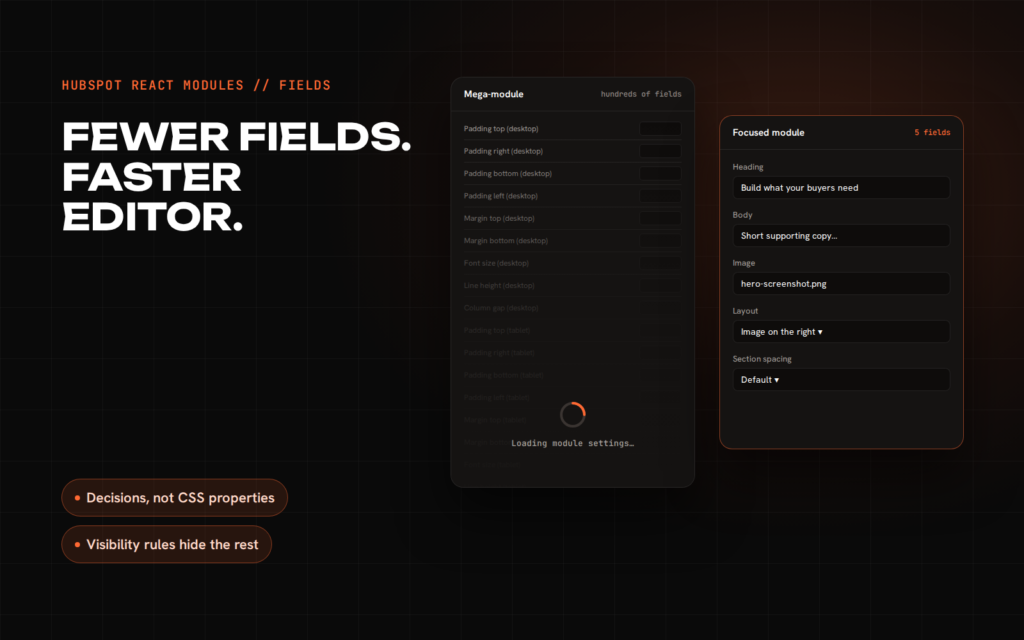
A while ago I worked on a site built with Power, a popular theme from the HubSpot Marketplace. One of its modules had a fields.json of roughly 24,000 lines. Opening a page that used it meant watching the editor sidebar think for long enough that you start wondering whether HubSpot is down. It isn’t. The editor is doing exactly what the module asked: building a form with hundreds of controls, most of which nobody will ever touch.
That’s the part of HubSpot module development people underestimate. Fields aren’t just the developer’s config file. They’re the interface your client’s marketing team uses every day, and every field you add costs something: load time in the editor, a decision for the marketer, and another combination that can break the page. This article is about writing fields for HubSpot’s React modules with that cost in mind.
How fields work in a React module
In a classic HubL module, you write fields.json by hand. In a React module, you describe the same fields as JSX, and HubSpot turns that tree into the field definitions the editor uses. The components come from @hubspot/cms-components/fields, and the root of the export must be ModuleFields.
// components/modules/Hero/fields.jsx
import {
  ModuleFields,
  TextField,
  RichTextField,
  ImageField,
} from '@hubspot/cms-components/fields';

export const fields = (
  <ModuleFields>
    <TextField name="heading" label="Heading" default="Build what your buyers need" />
    <RichTextField name="body" label="Body" />
    <ImageField name="image" label="Image" />
  </ModuleFields>
);
The component receives whatever the marketer set as fieldValues:
// components/modules/Hero/index.jsx
export const Component = ({ fieldValues }) => (
  <section className="hero">
    <h1>{fieldValues.heading}</h1>
    <div dangerouslySetInnerHTML={{ __html: fieldValues.body }} />
  </section>
);

export { fields } from './fields.jsx';
Writing fields in JSX is a real improvement. You get imports, constants, shared field groups and code review on something that used to be a wall of JSON. It also makes it very easy to generate far too many fields. A loop that spreads a spacing group across six breakpoints takes two lines of JSX and produces hundreds of lines of field definitions.
Every module has two users
The first user is the marketer. They open the page on a Tuesday afternoon to swap a headline and a screenshot before a campaign goes out. They don’t think in padding values and breakpoints. They think in “make this section look like the one on the pricing page”. Every field they have to scroll past is friction, and every option they can set wrongly is a support ticket waiting to happen.
The second user is the editor itself. When someone selects a module, the HubSpot editor has to read its field definitions and render a control for each one: inputs, colour pickers, nested groups, repeaters. The more definitions there are, the more work it does before the marketer can type anything. Nobody blames the module for that. They blame HubSpot.
The Elementor trap
Anyone who has worked with Elementor in WordPress knows where this leads. Every element can do everything: margins per side per breakpoint, typography overrides, hover states, entrance animations. Marketplace themes copy the approach because “one module, endless layouts” sells well on a listing page. On a real site it costs you three things.
- A slower editor. Hundreds of fields per module means the editor takes noticeably longer to open each one. On a page with ten such modules, the whole editing session drags, and the marketer starts avoiding edits.
- Decision fatigue. A heading with forty style options doesn’t feel flexible to a marketer. It feels like homework. Most people change nothing and live with the defaults, or change everything and drift away from the brand.
- Pages that break. Every option multiplies the combinations you’d have to test. Nobody tests them all, so sooner or later someone picks the combination that overlaps on mobile and ships it.
The fix isn’t zero options. A module with too few fields sends the marketer back to the developer for every small change, which defeats the point of a CMS. The goal is the smallest set of fields that lets the marketer do their actual job without help.
The rules I build modules by
1. Expose decisions, not CSS properties
A marketer doesn’t want to set top padding, bottom padding and column gap at three breakpoints. They want “compact” or “spacious”, and “image on the left” or “image on the right”. Give them the decision and keep the CSS in your code.
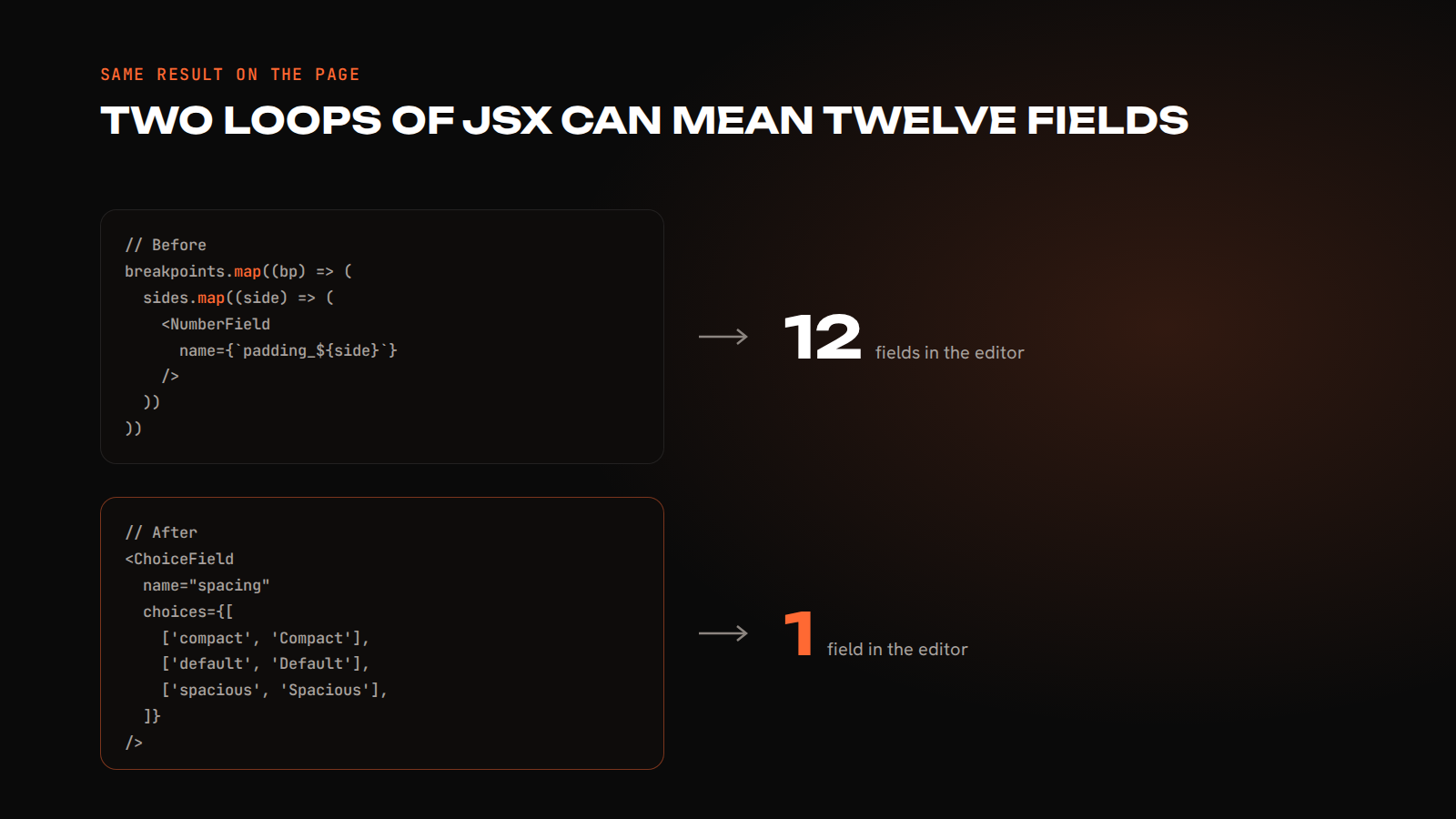
Here is the trap in JSX. It looks tidy, and it quietly generates dozens of fields:
// Before: every spacing value, at every breakpoint
const breakpoints = ['desktop', 'tablet', 'mobile'];
const sides = ['top', 'right', 'bottom', 'left'];

export const fields = (
  <ModuleFields>
    {breakpoints.map((bp) => (
      <FieldGroup key={bp} name={`spacing_${bp}`} label={`Spacing (${bp})`}>
        {sides.map((side) => (
          <NumberField key={side} name={`padding_${side}`} label={`Padding ${side}`} suffix="px" />
        ))}
      </FieldGroup>
    ))}
  </ModuleFields>
);
Twelve fields for something the design system should have answered already. The alternative is one field:
// After: one decision
<ChoiceField
  name="spacing"
  label="Section spacing"
  display="select"
  choices={[
    ['compact', 'Compact'],
    ['default', 'Default'],
    ['spacious', 'Spacious'],
  ]}
  default="default"
/>
The component maps spacing to a class, and your CSS handles every breakpoint.
2. Keep the design system in the theme
Colours, fonts and the spacing scale belong in theme-level settings or CSS custom properties, not in every module. A module should pick from a few named options such as “light”, “dark” or “brand”, not offer a full colour picker. That keeps pages on brand when five different people edit the site.
3. Show a field only when it matters
If the image settings only apply when the layout includes an image, hide them otherwise. HubSpot supports this through visibility rules, which the editor evaluates as the marketer works:
<ChoiceField
  name="layout"
  label="Layout"
  choices={[
    ['text_only', 'Text only'],
    ['image_left', 'Image on the left'],
    ['image_right', 'Image on the right'],
  ]}
  default="image_right"
/>
<ImageField
  name="image"
  label="Image"
  visibility={{
    controlling_field_path: 'layout',
    operator: 'NOT_EQUAL',
    controlling_value_regex: 'text_only',
  }}
/>
For conditions that combine several fields, use advanced_visibility with AND or OR criteria.
4. Separate content from style
Put what changes often (copy, images, links) on the content side, and the rarer layout choices in the Styles tab ("tab": "STYLE" in fields.json). Group related fields with FieldGroup and leave groups collapsed by default. HubSpot allows up to three levels of nesting; if you need all three, the module is probably doing too much.
5. Defaults that look finished
When a marketer drops a module onto a page, it should already look like a real section of the site, with sensible copy length, a real-looking image and the most common layout selected. Good defaults remove half the reasons to open the settings at all.
6. Help text where the choice isn’t obvious
Use inline help text (inline_help_text in fields.json) for anything that needs a sentence of explanation, such as “Use a 16:9 image, at least 1600px wide.” One line of help is cheaper than a support ticket.
7. Split modules instead of growing one
When a module starts needing “mode” switches that change half its fields, it’s two modules. “Hero” and “Hero with form” are easier to use, faster to load and easier to maintain than one hero with a toggle that rewires everything.
8. Keep a field budget
My rule of thumb: if a marketer sees more than 15 to 20 fields at once, the module needs another look. Count the fields in your compiled fields.json before you ship. If the number surprises you, it will surprise the editor too.
Before you ship a module
- Open it in the page editor on a normal laptop and time how long the sidebar takes. If you notice the wait, so will the client.
- Ask someone non-technical to change the headline, swap the image and change the layout without help.
- Count the fields in the generated fields.json, including everything a JSX loop produced.
- Check that every style option is a named decision, not a raw CSS value.
- Make sure fields that only apply to some layouts are hidden for the others.
- Drop the module on a blank page with its defaults and confirm it already looks finished.
- Try the worst combination of options on mobile. If it breaks, remove the option or constrain it.
The editor is part of the product
A HubSpot site isn’t finished at launch. It’s finished when the marketing team can run it without calling a developer. That depends far more on field design than on how the page looks in a Figma file. The modules that age well are the boring ones: a handful of clear choices, sensible defaults, and an editor that opens straight away.
For the wider picture, see my complete guide to HubSpot custom modules and the step-by-step guide to building a custom HubSpot theme.
If your HubSpot editor feels slow, or your team avoids touching certain modules, the cause is usually in the fields, not in HubSpot. I’m happy to take a look. Book a free 30-minute call and bring the module that annoys you most, or read how I work on HubSpot CMS development.
Sources: HubSpot docs: React modules · Module and theme fields · Field visibility and groups